TalentFolio User Guide
TalentFolio is a powerful yet easy-to-use application designed for hiring managers to efficiently manage information on job candidates. It is optimized for users who prefer a Command Line Interface (CLI) while still having the benefits of a Graphical User Interface (GUI). If you're a fast typist, TalentFolio can significantly speed up your hiring workflow!
Table of Contents
- Quick start
a. Install Java (if not already installed)
b. Download TalentFolio
c. Set up TalentFolio
d. Running TalentFolio
e. Using TalentFolio
f. Need more help? - Features
a. Viewing help:help
b. Showing a person's details:show
c. Adding a person:add
d. Listing all persons:list
e. Editing a person:edit
f. Linking an attribute name to a website:link
g. Locating persons by name:find
h. Deleting a person:delete
i. Clearing all entries:clear
j. Filtering candidates by attributes:filter
l. Sorting entries by an attribute:sort
m. Sorting entries by the numerical value of an attribute:sort-num
n. Undoing the last data change:undo
o. Navigating past commands: ↑ ↓
p. Exiting the program:exit
q. Saving the data
r. Editing the data file - FAQ
- Known issues
- Command summary
Quick start
Follow these simple steps to get TalentFolio up and running:
1. Install Java (if not already installed)
TalentFolio requires Java 17 or later to run. Check your Java version by opening a terminal or command prompt and typing:
java -version
If Java is not installed or is an older version:
- Windows/Linux users: Download and install the latest Java Development Kit (JDK) from Oracle's website.
- Mac users: Follow the instructions and ensure you have the precise Java Development Kit (JDK) version prescribed here.
2. Download TalentFolio
Get the latest version of TalentFolio from our official release page. Download the latest .jar file available.
3. Set up TalentFolio
Move the .jar file to the folder you want to use as the home folder for TalentFolio. This folder will store the TalentFolio application data. We recommend choosing a convenient location that you have read, write and execute permissions for.
4. Running TalentFolio
Open a command terminal:
- Windows users: Press
Win + R, typecmd, and hit Enter. - Mac/Linux users Open the Terminal app.
Navigate to the folder where you placed the.jarfile. You can do this using thecdcommand. For example:
cd path/to/your/folder
Run the following command in the terminal to launch the application:
java -jar talentfolio.jar
After a few seconds, the TalentFolio application should open, and you should see a GUI similar to the one shown below. Note that the app contains some sample data. It is recommended to clear the sample data before your own personal use as it will not be automatically overwritten.
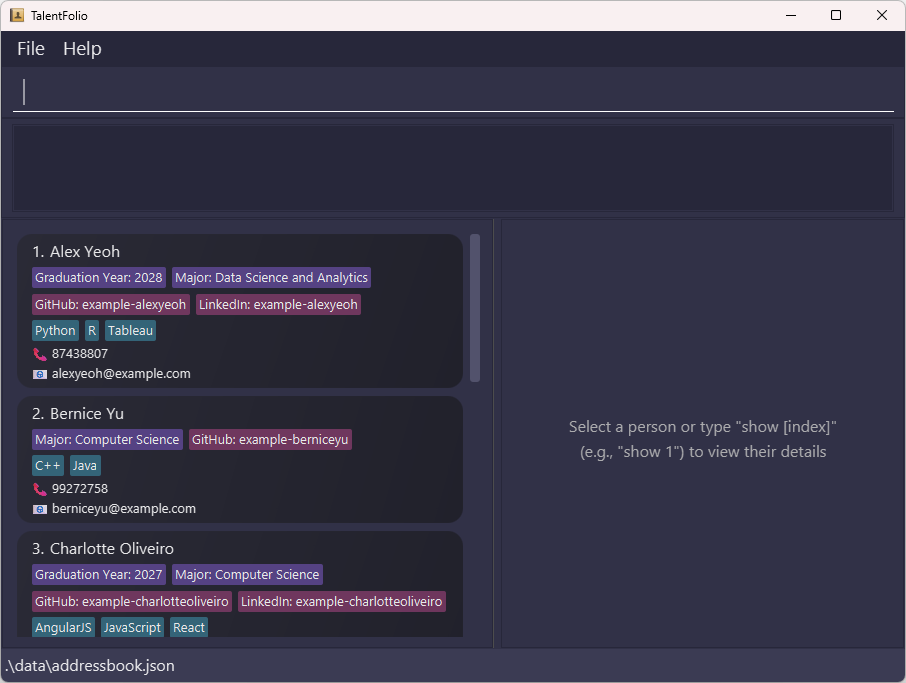 TalentFolio's graphical user interface
5. Using TalentFolio
Type the command in the command box and press Enter to execute it. For example, typing help and pressing Enter will open the help window.
Some example commands you can try:
list: Lists all candidates.add n/John Doe p/98765432 e/johnd@example.com: Adds a candidate namedJohn Doeto the database.edit 1 a/GPA=3.9 ra/CAP: Adds a GPA and removes a CAP from the 1st candidate shown in the current list.filter a/Major=Computer Science: Filters all candidates who major in Computer Science.sort a/Graduation Year: Sorts candidates in alphabetically ascending order of Graduation Year.delete 3: Deletes the 3rd candidate shown in the current list.clear: Deletes all candidates.undo: Undoes the last command.exit: Exits the app.
Quick notes on some commands:
The
findcommand can be used to search candidates by name, while thefiltercommand allows you to search by attributes.The
add/editcommands add/edit attributes at the individual candidate level, whereas thelinkcommand creates an association between the attribute name and a site link at the app-wide level.
6. Need more help?
For a complete list of features and detailed instructions of each command, check out the Features section below.
Enjoy using TalentFolio to streamline your hiring process!
Features
Notes about the command format:
Words in
UPPER_CASEare parameters for you to supply.
For example: inadd n/NAME,NAMEshould be replaced with the person's actual name. For a person named John Doe, this would beadd n/John Doe.Items in square brackets are optional.
For example:n/NAME [t/TAG]can be used asn/John Doe t/Excelor asn/John Doe.Items with
…after them can be used as many times as desired – if the items are optional, 0 or more times; otherwise, 1 or more times.
For example:[t/TAG]…can be used as(i.e. 0 times),t/Excel,t/C++ t/Java, etc.Parameters can be in any order.
For example: if the command specifiesn/NAME p/PHONE_NUMBER,p/PHONE_NUMBER n/NAMEis also acceptable.Extraneous parameters immediately after the command word will be ignored.
For example:If you type
help 123, it will be interpreted ashelp.If you type
sort t/Excel a/Major, it will be interpreted assort a/Major.sort a/Major t/Excelwill not be accepted, since the extraneous parametert/Excelis after the actual parametera/Major.
If you are using a PDF version of this document, be careful when copying and pasting commands that span multiple lines as space characters surrounding line-breaks may be omitted when copied over to the application.
Viewing help: help
Shows a message explaining how to access the help page.
 Help message window
Format: help
Showing a person's details: show
Shows the specified person's details in the right panel.
Format: show INDEX
- You can also view a person's details by clicking on them in the left panel.
Example:
show 1shows the details of the 1st person.
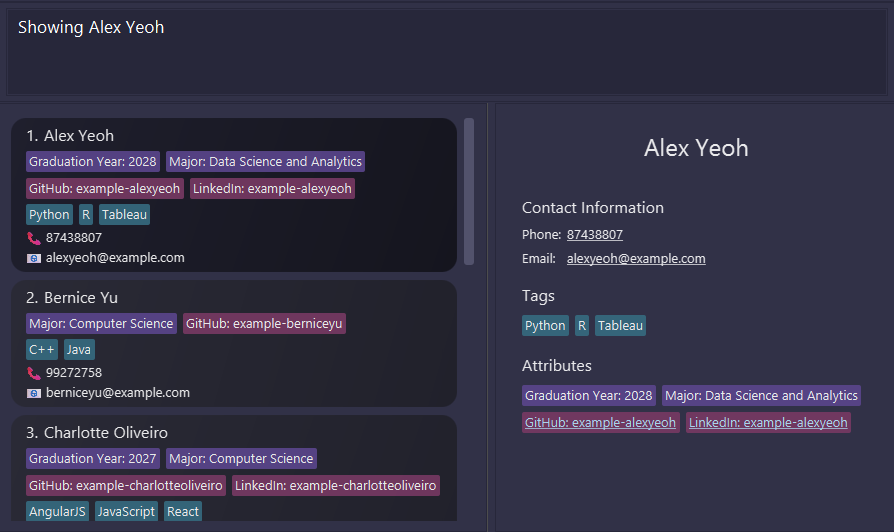 Results after typing
 show 1
Tip: In the right panel, you can click on the phone number or email address to copy it to your clipboard.
Adding a person: add
Adds a person to the database.
Format: add n/NAME p/PHONE_NUMBER e/EMAIL [t/TAG]… [a/ATTRIBUTE_NAME=ATTRIBUTE_VALUE]…
Examples:
add n/John Doe p/98765432 e/johnd@example.comadds a person namedJohn Doewith phone number98765432and email addressjohnd@example.com.add n/Betsy Crowe t/C++ e/betsycrowe@example.com p/1234567 t/Java a/Major=Data Science and Analyticsadds a person namedBetsy Crowewith phone number1234567, email addressbetsycrowe@example.com, tagsC++andJava, and an attribute namedMajorwith the valueData Science and Analytics.
Tip: A person can have any number of tags and attributes (including 0).
Restrictions on parameters
Names:
- Should only contain alphanumeric characters, spaces, and these special characters:
()/@-',._. - Should not be blank and should not be longer than 50 characters.
- Should not start with special (non-alphanumeric) characters.
If you have a name that cannot be written in the English alphabet, you will need to romanize the name. Here are some examples:
- François → Francois
- Müller → Mueller
- Катюша → Katyusha
- καλλίστη → Callista
- 孫 正義 → Son Masayoshi/Son Jeong-ui/Sun Zhengyi
Phone numbers:
- Should only contain numbers (no letters or other special characters such as
+-#*). - Should not be blank and should not be longer than 20 characters.
Email addresses:
Should have the format LOCAL_PART@DOMAIN and adhere to the following constraints:
LOCAL_PARTshould only contain alphanumeric characters and these special characters:+_.-. It should not be blank and should not start or end with any special characters.DOMAINis a domain name, which is made up of domain labels separated by periods. The domain name must:- end with a domain label at least 2 characters long.
- have each domain label start and end with alphanumeric characters.
- have each domain label consist of alphanumeric characters, separated only by hyphens, if any.
- Should not be longer than 50 characters.
Tags:
- Should not contain
/or\, should not be blank, and should not be longer than 50 characters.
Attribute names and values:
- Should not contain
/,\, or=, should not be blank, and should not be longer than 50 characters.
More information on attributes:
- Attribute names are unique. A person cannot have multiple attributes with the same name.
- Attribute names are case-insensitive. For example,
Majoris treated the same asmajor, so a person cannot have bothMajorandmajoras an attribute.- The original casing of your input is preserved. If you input
Major, that's how it will be stored and displayed.
- The original casing of your input is preserved. If you input
Listing all persons: list
Shows a list of all persons in the database.
Format: list
Editing a person: edit
Edits an existing person in the database.
Format: edit INDEX [n/NAME] [p/PHONE_NUMBER] [e/EMAIL] [t/TAG]… [rt/TAG_TO_REMOVE]… [a/ATTRIBUTE_NAME=ATTRIBUTE_VALUE]… [ra/NAME_OF_ATTRIBUTE_TO_REMOVE]…
- Edits the person at the specified
INDEX. The index refers to the index number shown in the displayed person list. The index must be a positive integer 1, 2, 3, … - At least one of the optional fields must be provided and be non-empty.
- Existing values will be updated to the input values.
Examples:
edit 1 p/91234567 e/johndoe@example.comEdits the phone number and email address of the 1st person to be91234567andjohndoe@example.comrespectively.edit 2 n/Betsy Crower t/Top candidateEdits the name of the 2nd person to beBetsy Crowerand adds a tagTop candidate.edit 3 rt/SQLEdits the 3rd person, removing the tagSQL.edit 1 a/Graduation Year=2027Adds or edits an attribute namedGraduation Yearto the 1st person.edit 1 ra/Graduation YearRemoves the attribute namedGraduation Yearfrom the 1st person.
For tags:
- Note that empty tags are not allowed, regardless of whether they are to be added or removed.
- Note that tags are case-sensitive.
- Duplicate tags are ignored:
- If you attempt to add a tag that already exists, it will not be added a second time.
- A tag that is added multiple times in the same command will only be added once.
- Similarly, a tag that is removed multiple times in the same command will only be removed once.
- The same tag cannot be added and removed in the same command. For instance,
edit 1 t/Ideal rt/Idealis not allowed.
For attributes:
- Updating an attribute requires you to specify both the attribute name and attribute value.
- For updating an attribute: duplicate attribute names with different values are not allowed.
- For updating an attribute: duplicate attribute names with same values will not show any warning.
- For removing an attribute: duplicate attribute names will not show any warning.
- If the attribute name already exists for this person, the corresponding attribute value will be updated. Otherwise, the attribute name and attribute value will be added to this person as a new attribute.
- Removing the attribute only requires you to specify the attribute name.
- This must be an existing attribute.
- You cannot remove an attribute that will be updated in the same command. For example,
edit 1 a/Major=Physics ra/Majoris not allowed.
Filters:
- If a filter is currently active (through the
filterorfindcommand) when a person is edited, that person may no longer pass the existing filtering criteria. Hence, to ensure that the person is still shown in the UI, filters are cleared after a person is edited.
Linking an attribute name to a website: link
Associates an attribute name with a website URL for all candidates. This means that you can visit the website by clicking on the attribute in a person's detailed view (which can be shown by clicking on them or by using the show command).
Format (to add a link): link a/ATTRIBUTE_NAME=SITE_LINK
- Associates
ATTRIBUTE_NAMEwithSITE_LINK. This change applies to all persons that have an attribute with this name. Attributes with this name that are added in the future will also be linked to this site URL. - Note that the beginning of the URL (usually
https://) has to be included too.
Format (to remove an existing link): link ra/ATTRIBUTE_NAME
- Removes the association between
ATTRIBUTE_NAMEand the website it was associated with.
Examples:
link a/github=https://github.com/- You can now visit
https://github.com/ATTRIBUTE_VALUEby clicking on the attribute. - For example, if a person has an attribute with the name
GitHuband the valuepochitaro2025(usually their username), you will be directed tohttps://github.com/pochitaro2025!
- You can now visit
link ra/github- This will delete the association between
githubandhttps://github.com/. - Clicking the attribute now will have no effect.
- This will delete the association between
Attribute names are case-insensitive. link a/github=https://github.com/ has the same effect as link a/GitHub=https://github.com/.
If an attribute corresponds to an invalid link (i.e., the app cannot open the site link), clicking on it may copy it instead of opening it.
It is recommended to include the prefix — such as https:// or http:// — as omitting it may cause the above issue.
Tip: Associations for github and linkedin (https://github.com/ and https://www.linkedin.com/in/) are added by default!
Enjoy the easy management of websites!
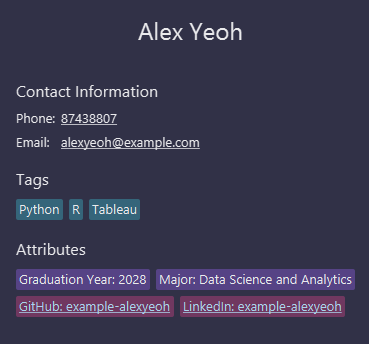
Clicking on the attribute GitHub: example-alexyeoh opens
the link https://github.com/example-alexyeoh
Locating persons by name: find
Finds persons whose names contain any of the given keywords.
Format: find KEYWORD…
- You must specify at least one keyword.
- You can specify more than one keyword.
- The search is case-insensitive. For example,
hanswill matchHans. - The order of the keywords does not matter. For example,
Hans Bowill matchBo Hans. - Only the name is searched.
- Words containing the keyword as a substring will be matched. For example,
Hanwill matchHans.- Note that the substring must be continuous. For example,
Haswill not matchHans.
- Note that the substring must be continuous. For example,
- Persons matching at least one keyword will be returned (i.e.
ORsearch). For example,Hans Bowill matchHans Gruber,Bo Yang
Examples:
find Johnmatches any person withJohnas a substring in their name.find alex davidmatches any person withalexORdavidas a substring in their name.
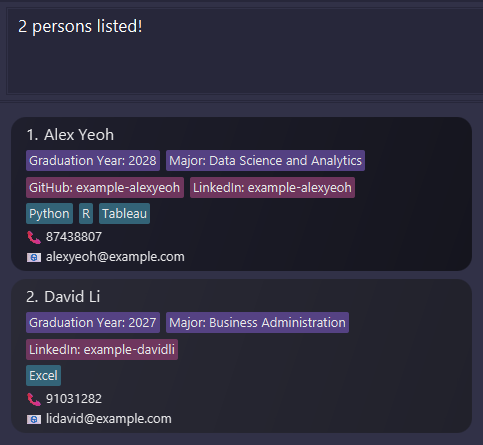 Results after typing
 find alex david
Deleting a person: delete
Deletes the specified person.
Format: delete INDEX
- Deletes the person at the specified
INDEX. - The index refers to the index number shown in the displayed person list.
- The index must be a positive integer 1, 2, 3, …
Examples:
listfollowed bydelete 2deletes the 2nd person in the database.find Betsyfollowed bydelete 1deletes the 1st person in the results of thefindcommand.
Clearing all entries: clear
Clears all entries.
Format: clear
Filtering candidates by attributes: filter
Filters the candidates based on whether they have a specific attribute or not.
Format: filter a/ATTRIBUTE_NAME=ATTRIBUTE_VALUE…
- You must specify at least one attribute.
- You can specify more than one attribute:
- If you specify multiple attributes of the SAME name, candidates who meet ANY one of them will be shown.
- If you specify multiple attributes of DIFFERENT names, candidates who meet ALL of them will be shown.
- You can specify attributes of different names, with multiple values of each. In this case, the 1st rule will be applied first, followed by the 2nd rule (see Examples).
- The order of input attributes does not matter (see Examples).
- Both
ATTRIBUTE_NAMEandATTRIBUTE_VALUEare matched case-insensitively.
Additional notes on warning messages:
- Attribute names and values are tolerant of typos. If no attribute is matched due to a minor typo, the app corrects it with a warning message.
- For example,
GraduatOIn yearwill be corrected toGraduatIOn yearautomatically, if onlyGraduation yearexists as an attribute name.
- For example,
- If there is no candidate having the specified attribute name/value, warning messages will also be shown.
- Note that the check is done independently between name and value. For example, if there are exactly two attributes
Major=EngineeringandGraduation year=2027, no warning will be shown by an inputMajor=2027.
- Note that the check is done independently between name and value. For example, if there are exactly two attributes
Autocorrection is different from autocompletion. For example, Majo and Makor will match Major, but Maj will not, as it is considered too far from the original Major.
This autocorrection only occurs if at least one candidate has an attribute with this name Major. The same logic applies to the attribute value.
To avoid unintentional corrections, autocorrection does not modify the numeric portions of attribute names/values. For example, the attribute value 2022 would not be autocorrected to 2027, nor would the attribute name TOEFL 2023 be changed to TOEFL 2024.
Examples:
| Command | Filtered condition |
|---|---|
filter a/Major=Computer Science a/Graduation year=2027 | major in Computer Science AND will graduate in 2027 |
filter a/Major=Computer Science a/Major=Mathematics | major in Computer Science OR Mathematics |
filter a/Major=Computer Science a/Major=Mathematics a/Graduation year=2027 | major in either Computer Science OR Mathematics, AND will graduate in 2027 |
For the last command example,
| Major | Graduation Year | Matched? | Reason (if not matched) |
|---|---|---|---|
| Computer Science | 2027 | Yes | |
| Mathematics | 2027 | Yes | |
| Engineering | 2027 | No | do not meet the first condition |
| Computer Science | 2026 | No | do not meet the second condition |
| (no info) | 2027 | No | missing (= do not meet) the first condition |
| Computer Science | (no info) | No | missing (= do not meet) the second condition |
You can also obtain the same result with filter a/Major=Computer Science a/Graduation year=2027 a/Major=Mathematics, because the order of the arguments does not matter.
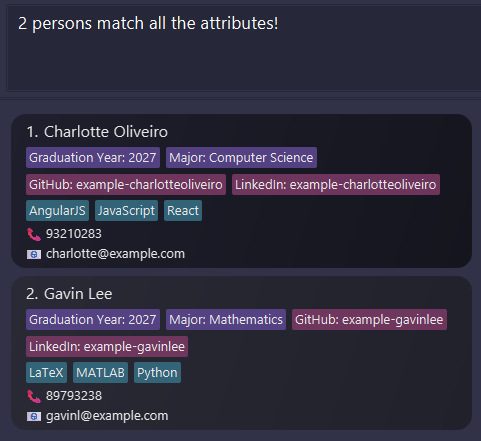
Results after typing filter a/Major=Computer Sciencea/Major=Mathematics a/Graduation year=2027
Sorting entries by an attribute: sort
Sorts the current view of entries by the value of the specified attribute name in alphabetically ascending or descending order.
Format: sort a/ATTRIBUTE_NAME [o/ORDER]
- Entries without the specified attribute will be placed at the back while preserving their relative order.
- In this case, a warning will indicate the last entry in the current view that contains the specified attribute name, if any; otherwise, it will display a warning that the specified attribute is missing.
ATTRIBUTE_NAMEis matched case-insensitively. For instance, a commandsort a/graduation yearcan sort all entries that have an attribute with nameGraduation Year.- If no
ORDERis specified, entries will be sorted in ascending order by default. Otherwise, the first character of the user input (case-insensitive) will determine the order: if it starts with 'a', entries will be sorted in ascending order; if it starts with 'd', they will be sorted in descending order. - Attribute names are tolerant of typos. If no attribute with the specified attribute name is found due to a minor typo, the app corrects it with a warning message.
Autocorrection is different from autocompletion. For example, Majo and Makor will match Major, but Maj will not, as it is considered too far from the original Major.
This autocorrection only occurs if at least one candidate has an attribute with this name Major.
To avoid unintentional corrections, autocorrection does not modify the numeric portions of attribute names/values. For example, the attribute name TOEFL 2023 will not be autocorrected to TOEFL 2024.
Example:
sort a/majorsorts entries in ascending order according to theirMajoralphabetically.- Entries without
Majoras an attribute will be sorted to the end of the list.
- Entries without
sort a/locaton o/descsorts entries in descending order according to theirLocationalphabetically.- Note that
locatoncan be autocorrect toLocationwith a warning.
- Note that
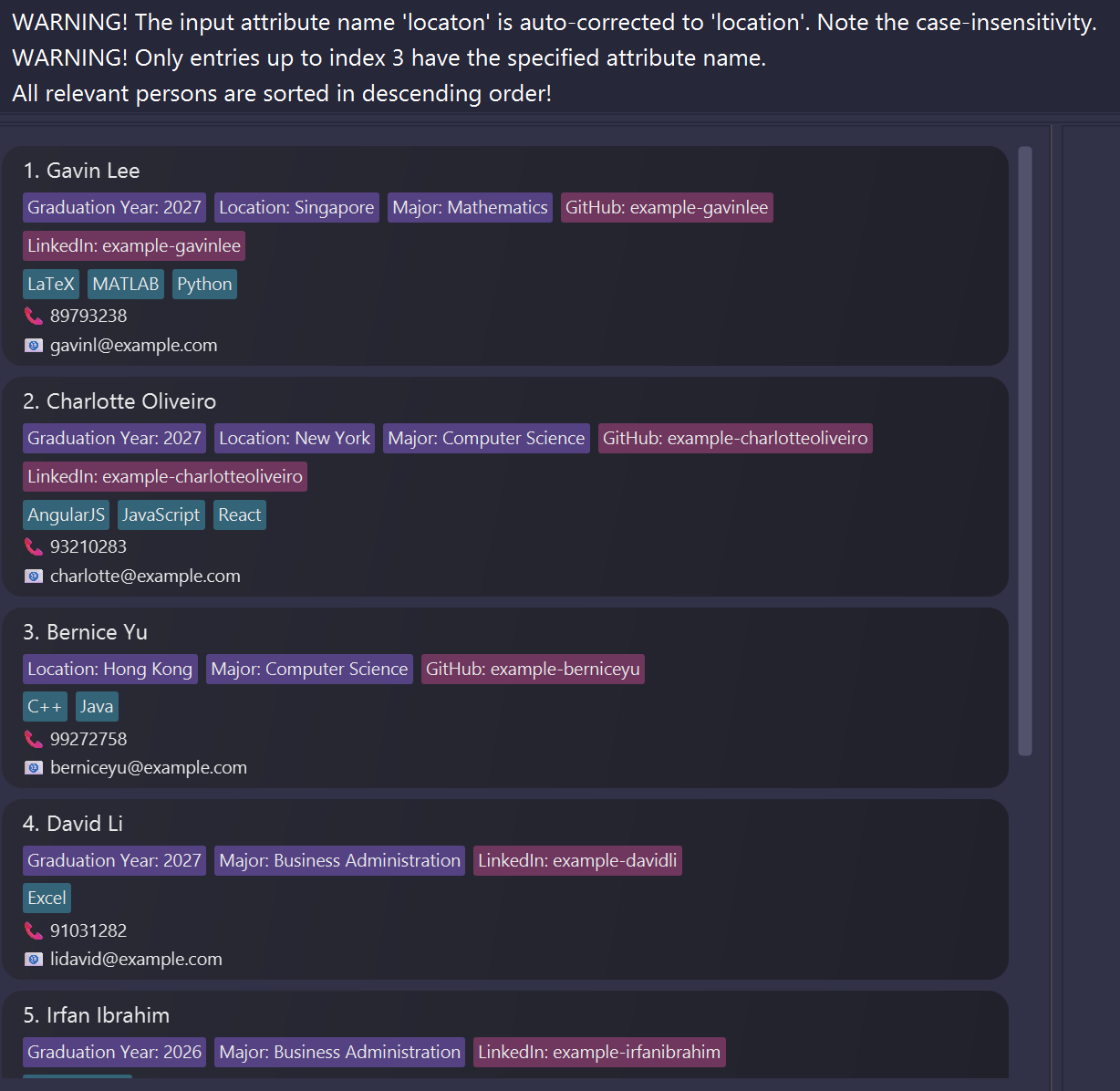
Results after typing sort a/locaton o/desc
Sorting entries by the numerical value of an attribute: sort-num
Sorts the current view of entries by the numeric value of the specified attribute name in ascending or descending order.
Format: sort-num a/ATTRIBUTE_NAME [o/ORDER]
- For each attribute value which can be parsed into a number, its numerical value will be stored.
- Entries without the specified attribute will be placed at the back while preserving their relative order.
- In this case, a warning will indicate the last entry in the current view that has the specified attribute, if any; otherwise, it will display a warning that the specified attribute is missing.
- If there is at least one entry with the specified attribute name and some of these entries lack a valid numerical value, those entries will be placed at the back while preserving their internal order.
- In this case, a warning will indicate the last entry in the current view that contains a valid numerical value, if any; otherwise, it will display a warning that numerical values are completely missing.
ATTRIBUTE_NAMEis matched case-insensitively. For instance, a commandsort a/graduation yearcan sort all entries that have an attribute with nameGraduation Year.- If no
ORDERis specified, entries will be sorted in ascending order by default. Otherwise, the first character of the user input (case-insensitive) will determine the order: if it starts with 'a', entries will be sorted in ascending order; if it starts with 'd', they will be sorted in descending order. - Attribute names are tolerant of typos. If no attribute with the specified attribute name is found due to a minor typo, the app corrects it with a warning message.
Example:
sort-num a/expected salarysorts entries numerically (in ascending order) according to theirExpected Salary.- Entries without a numerical value for
Expected Salarywill be placed at the end of the list, with those havingExpected Salaryas an attribute but lacking a valid numerical value appearing first.
- Entries without a numerical value for
sort-num a/GPA o/descsorts entries numerically (in descending order) according to theirGPA.
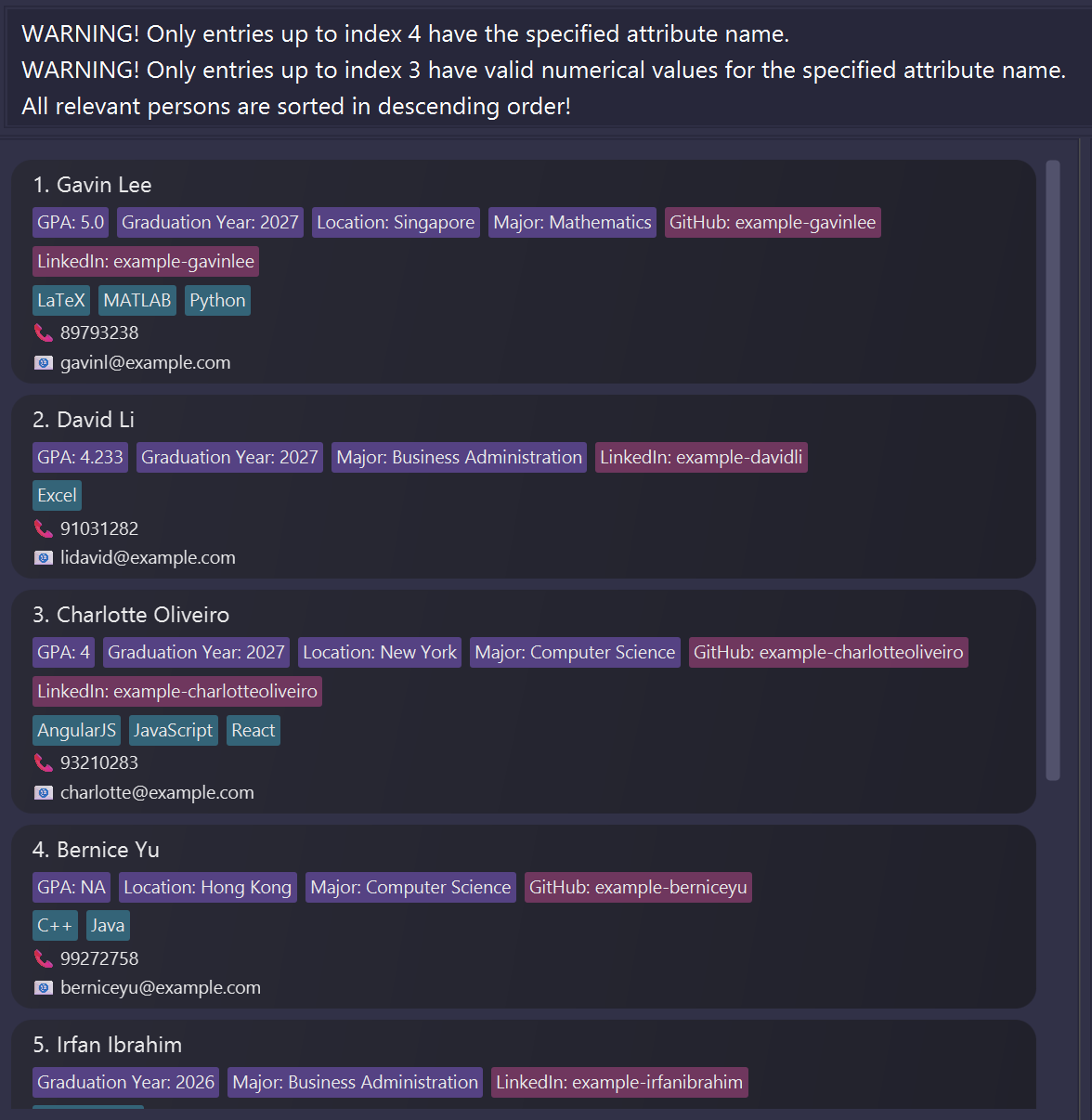
Results after typing sort-num a/GPA o/desc
Undoing the last data change: undo
Undoes the last data change. Also clears any existing filters applied.
For instance, suppose a user intended to type delete 5 but accidentally types and executes delete 4. They can just type undo to restore the deleted entry.
Note that commands that do not change the underlying data will be skipped -- such as filter, find and show.
Format: undo
- Only changes since the app was opened can be undone.
- Changes that are undone cannot be redone. However, you can simply re-execute the command. Previous commands can be retrieved by navigating past commands using ↑ ↓ key-presses.
undocan be used multiple times in succession to undo more changes.- Clears all applied filters.
- Does not work after exiting and re-opening the app. Using
undoon a freshly opened app will not change anything.
Examples:
delete 4, thenundowill get the result:Last data change command undone: delete 4sort-num a/Graduation Year, thenundowill get the result:Last data change command undone: sort-num a/Graduation Year- Assuming the app was just opened, the following actions will get the result
There is no change to undo!. Note that existing filters will not be cleared, as the command was not successful:show 3thenundofind n/Alexthenundofilter a/Graduation Year=2025thenundo
delete 4, thenfilter a/Graduation Year=2026, thenundowill skip over the filtering. It will undodelete 4and clear the filter
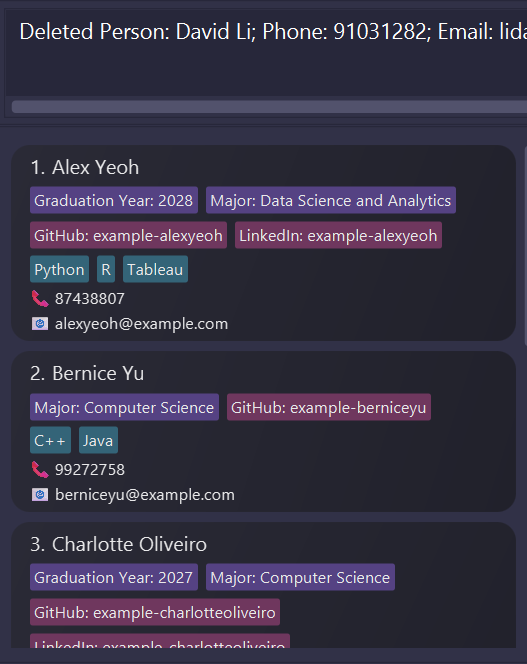
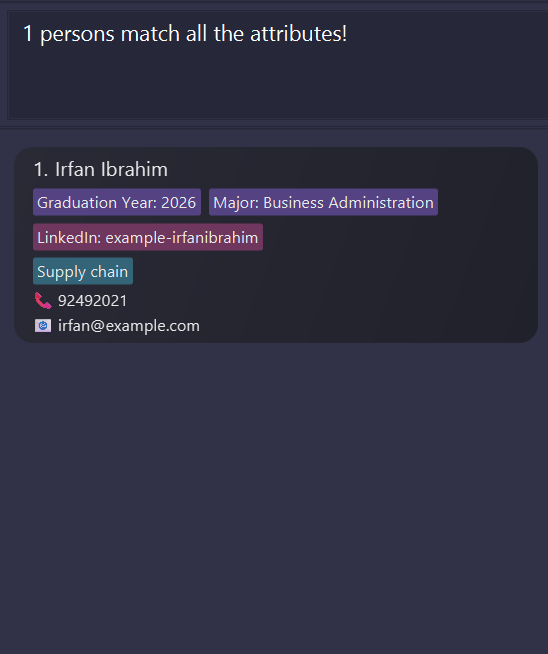
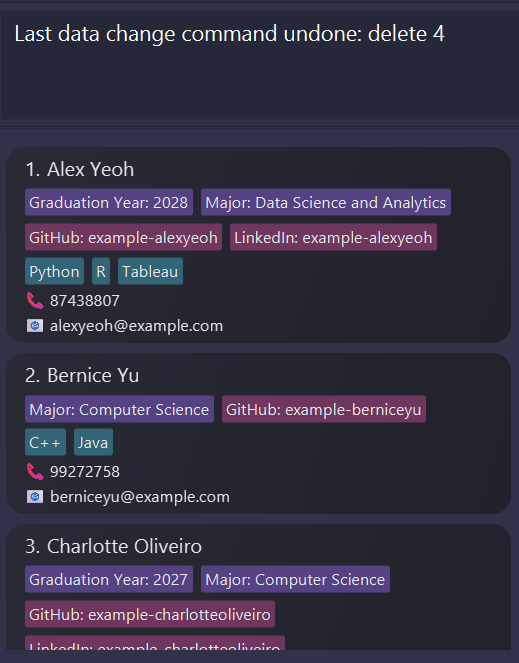
Results after typing delete 4, then filter a/Graduation Year=2026, then undo
Navigating past commands: ↑ ↓
Navigates through command history, replacing the text in the command box with the past executed command.
Format: Press the up arrow (↑) or down arrow (↓) key while the command box is selected.
- The up arrow (↑) key shows the previous executed command while the down arrow (↓) key shows the next executed command.
ENTERis not required to be pressed for navigation.- No error message will be shown if attempting to navigate beyond the first and last executed commands.
- If attempting to navigate beyond the first executed command, the first executed command will remain shown.
- If attempting to navigate beyond the last executed command, the command box will be emptied.
- Only successfully executed commands are stored in the command history.
- Executing any command successfully will reset the last executed command to the command that was just executed.
- Editing the command shown without execution will not change the previous and next executed commands.
- After editing the command shown, navigating to previous or next executed commands will discard any edits done (these edits will not be maintained when navigating back).
Exiting the program: exit
Exits the program.
Format: exit
Saving the data
TalentFolio data is saved in the hard disk automatically after any command that changes the data. There is no need to save manually.
Editing the data file
TalentFolio data is saved automatically as a JSON file [JAR file location]/data/talentfolio.json. Advanced users are welcome to update data directly by editing that data file.
Caution:
If your changes to the data file makes its format invalid, TalentFolio will discard all data and start with an empty data file at the next run. Hence, it is recommended to take a backup of the file before editing it.
Furthermore, certain edits can cause TalentFolio to behave in unexpected ways (for example, if a value entered is outside the acceptable range). Therefore, edit the data file only if you are confident that you can update it correctly.
Here are some tips on website linking. You can manually modify the correspondence between attribute names and site links by updating the urlSettings section in talentfolio.json.
Unlike the usual
linkcommand, you can leave the site link empty (i.e.,""). This allows you to copy the raw attribute value!If you add multiple linkings with the same attribute name, the site link appearing the first will be used–note that attribute names are case-insensitive.
Be careful: if the attribute name is empty or invalid (i.e., containing
/,\, or=), the app will clear all data!
FAQ
Q: How do I transfer my data to another Computer?
A: Install the app in the other computer and overwrite the empty data file it creates with the file that contains the data of your previous TalentFolio home folder.
Q: How do I manage multiple candidates with the same name?
A: While the app does not currently allow candidates with the same name, you can mitigate this by slightly modifying the name based on your use case. For instance, with 2 candidates of the name "John Tan", the second candidate "John Tan 2" or "John Tan (NUS)". Note that names are case-insensitive, naming them "John Tan" and "john tan" wouldn't work.
Q: Can I sort students by multiple different attributes?
A: You can perform multiple rounds of sorting, since sorting by an attribute name will preserve the relative order of candidates that have the same attribute value for that attribute name. For example, if you want to sort primarily by graduation year and have candidates with the same graduation year sorted by GPA, you can do sort a/GPA, then sort a/Graduation Year.
Q: Does TalentFolio support international phone numbers?
A: We will implement that in the future, but phone numbers currently must be all numeric. However, phone numbers still work without spaces and hyphens. One possible workaround is to use a 00 prefix to denote the + symbol.
Q: What can I do if I accidentally delete an entry?
A: No worries, you can simply undo the last command!
Q: What can I do if I accidentally press Enter when I was typing my command halfway, and the command executed?
A: If the command executed changes any data, you can use undo to undo the data change. Then, to continue typing the last command, you can use the arrow key ↑ to retrieve the command you typed halfway, and resume typing it.
Q: Is there a limit to how many candidates I can add?
A: There is no limit we impose. However, with an excessively large number of candidates, the app would use more computer memory, which may cause your computer to lag.
Q: Does linking create a new attribute?
A: No. link is intended for portfolio websites. For instance, the default data links github attribute to https://github.com/, so that if a user has an attribute github=example-username, that attribute will have a link to https://github.com/example-username. Linking is intended to be universal, and not user-specific.
Known issues
- When using multiple screens, if you move the application to a secondary screen, and later switch to using only the primary screen, the GUI will open off-screen. The remedy is to delete the
preferences.jsonfile created by the application before running the application again. - If you minimize the Help Window and then run the
helpcommand (or use theHelpmenu, or the keyboard shortcutF1) again, the original Help Window will remain minimized, and no new Help Window will appear. The remedy is to manually restore the minimized Help Window. - If using Linux or Unix, clicking on links will not open them. Instead, the link will be copied to the system clipboard, and a window will appear to notify you that the link has been copied. You will have to paste the link into your browser manually.
- If names, phone numbers, emails, tags, or attributes are too long, the data may not display correctly and may be truncated with "...". You can expand the window width to view the complete text.
Command summary
| Action | Format, Examples |
|---|---|
| Help | help |
| Show | show INDEX Example: show 1 |
| Add | add n/NAME p/PHONE_NUMBER e/EMAIL [t/TAG]… [a/ATTRIBUTE_NAME=ATTRIBUTE_VALUE]… Example: add n/James Ho p/22224444 e/jamesho@example.com t/C++ t/Java a/Major=Data Science and Analytics |
| List | list |
| Edit | edit INDEX [n/NAME] [p/PHONE_NUMBER] [e/EMAIL] [t/TAG]… [rt/TAG]… [a/ATTRIBUTE_NAME=ATTRIBUTE_VALUE]… [ra/ATTRIBUTE_NAME]… Example: edit 2 n/James Lee e/jameslee@example.com |
| Link (to add a link) | link a/ATTRIBUTE_NAME=SITE_LINK |
| Link (to remove a link) | link ra/ATTRIBUTE_NAME |
| Find | find KEYWORD…Example: find James Jake |
| Delete | delete INDEXExample: delete 3 |
| Clear | clear |
| Filter | filter a/ATTRIBUTE_NAME=ATTRIBUTE_VALUE… Example: filter a/Major=Computer Science |
| Sort | sort a/ATTRIBUTE_NAME [o/ORDER]Example: sort a/Degree o/ascending |
| Numerical Sort | sort-num a/ATTRIBUTE_NAME [o/ORDER]Example: sort-num a/GPA o/descending |
| Undo | undo |
| Navigate Past Commands | ↑ ↓ |
| Exit | exit |